How the assistant answers calls
Last updated 3 July 2026
The core of fonea: when you can't get to the phone, your assistant takes over. It greets the caller, clarifies their request, takes a message — and you receive a summary by email right afterwards. No missed call, no lost customer.
In short: A call is forwarded to your assistant when you don't pick up. The assistant greets the caller, follows your instructions, takes down their name, callback number and request, and can transfer the call to a person if needed. Straight after the call you receive an email summary; the full call with transcript and recording is available in the dashboard.
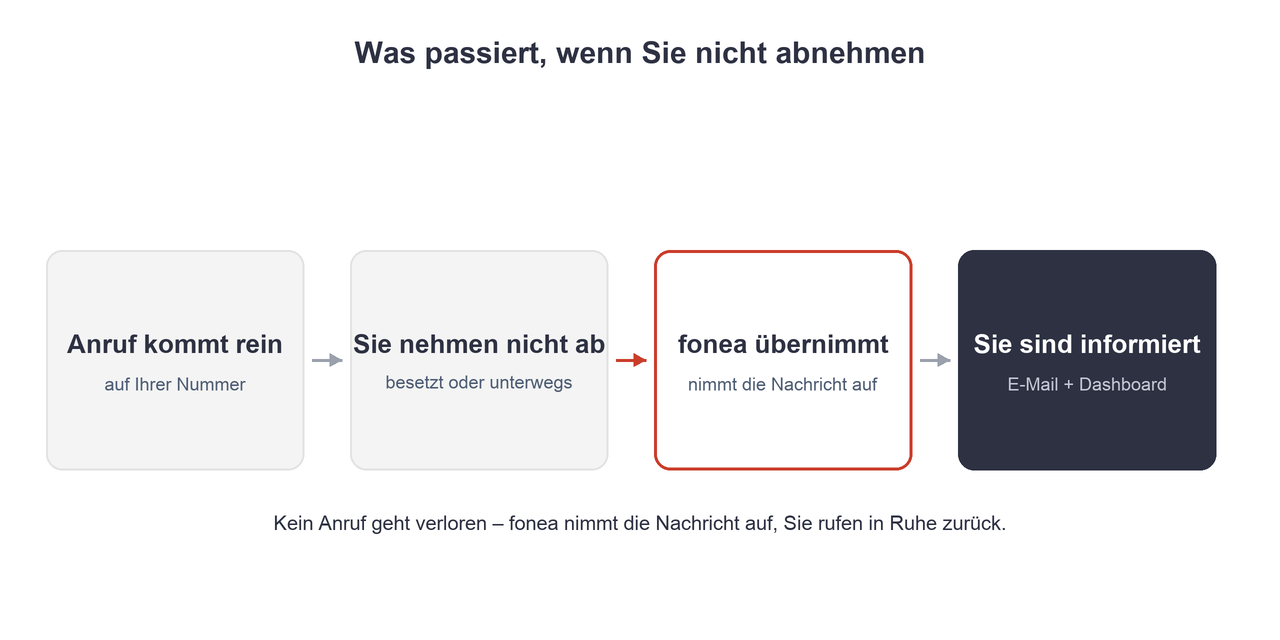
When the assistant picks up
Your assistant steps in when a call to you goes unanswered. To make that happen, you set up call forwarding on your existing number — if nobody picks up after a few seconds, the assistant takes over. Optionally, it can also take over when your line is busy.
Your customers keep calling the same number as always. How to set this up is covered in Connect your existing number to fonea.
What happens during the call
- Greeting. The assistant starts by speaking your greeting message.
- Clarifying the request. It follows the instructions from your system prompt and your follow-up questions. For example, you can instruct it to distinguish between a new and an existing enquiry and proceed differently depending on the answer.
- Taking down details. Name, callback number and the reason for the call. The assistant already knows the number the caller is calling from — it simply confirms it briefly instead of asking the caller to dictate it.
- Transferring when needed. If you wish, the assistant can transfer a call to a person — for instance when a request is urgent or the caller explicitly asks for someone in person.
Exactly what the assistant says and asks is up to you — see Setting up instructions for your assistant.
The email summary
Right after a call ends, you receive a summary by email. It is on by default. A typical summary contains:
- a short summary of the conversation and the key points,
- the call details: name, phone number, date, time, duration and an urgency rating,
- the callback number, callback email and preferred time, where mentioned,
- a note that action is required, when applicable,
- a link to open the full call in the dashboard.
You manage the recipient addresses and switch the summary on or off in Settings.
If a call was too short or too quiet for a summary, you still receive a brief notification with the call details.
In the dashboard: call, transcript and recording
Every call lands in your call log. The detail view shows you:
- the transcript of the conversation,
- the recordings (audio of the caller and of the assistant),
- the captured details and the call metadata.
So you can listen back and read up on what was discussed at any time.
Being transparent with callers
We recommend being open about the fact that an AI assistant is handling the call. Most callers are fine with it, especially when it's clear that someone will call back promptly. You can make this part of your greeting and your instructions.
What works today — and what's coming
Live today: answering calls when you're unavailable · clarifying requests according to your instructions · taking a message and callback number · transferring to a person when needed · email summary · call, transcript and recording in the dashboard.
In development: direct appointment booking during the call (see Connect your calendar) and additional channels such as SMS notifications. We're expanding these features continuously.
Frequently asked questions
Does the assistant always answer the phone?
No — only when you don't pick up yourself. Optionally, it can also take over when your line is busy. You stay in control: if you answer, the assistant doesn't handle the call.
Can the assistant transfer a call to a person?
Yes. If you wish, the assistant can transfer a call to a person. In the normal case — you're unavailable right now — it takes a message and you call back.
Do I get a summary after every call?
Yes, the email summary is on by default. You choose the recipients and switch it on or off in Settings.
Where can I see my calls and listen back to them?
In the call log in the dashboard. The detail view shows the transcript and recordings of every call.
Does the assistant have to ask for the caller's number?
No. The transmitted number is already known; the assistant just confirms it briefly instead of having it dictated.
Related articles
Still have questions?
Write to us — we're happy to help. Or listen to a live demo right in your browser.